
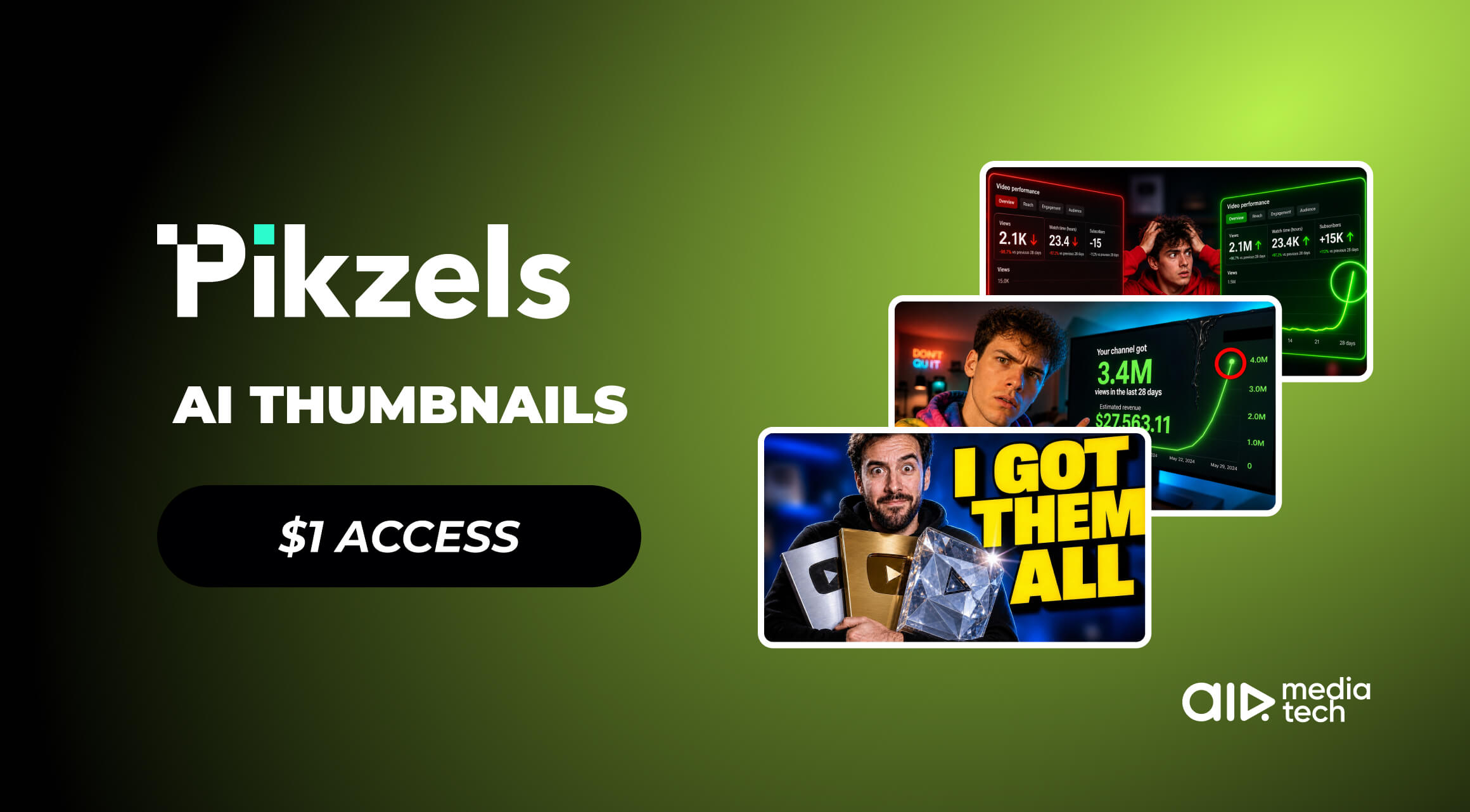
So many AI image generators are out there (hundreds, really), and not so many are created for YouTubers. We've been looking for this kind of tool for our community for a long time now, and then Pikzels came along. Here are the wonders it does with thumbnails.
- Generating AI thumbnails with a high YouTube score (it's trained on millions of thumbnails)
- Recreating high-performing thumbnails of competitors
- Using your face exactly as you want it in a thumbnail, and there is even a YouTube title feature to match.
- Editing with plain text: just tell it what to change, and it changes it
So it's no surprise that Pikzels is now an official AIR partner.
AIR community members get their first month for $1, then 30% off any plan after that, for as long as they stay subscribed.
Grab a special offer here →What else does the AIR community get?
We're adding 10+ new tools to our existing lineup of 40+ creator solutions in AIR Space. Pikzels is one of them, and more are to come. We're building a space where YouTubers have everything they need to reach their goals. Jump into AIR Space and explore all the ways we can help you scale.
Why Pikzels, Exactly?
From what we heard from some of our creators, they generate thumbnails with Pikzels because:
Here's the updated list:
- It's trained for YouTube, not for art. Pikzels isn't a general image generator trying to be everything like ChatGPT. It was built on millions of real YouTube thumbnails, which means it understands composition, text placement, and what makes someone click. Generic AI tools don't.
- It saves an hour per video, every video. Designing thumbnails in Photoshop or Canva takes time and skill. With Pikzels, you describe what you want, and a ready-to-test thumbnail appears in under 60 seconds. For channels posting 2–4 videos per week, that adds up fast.
- You can put your face in any thumbnail without a photoshoot. Upload 3 photos once. After that, Pikzels places your face into any generated thumbnail (any concept, any setting, any emotion) without you ever picking up a camera again.
- You stop guessing whether a thumbnail will work. Pikzels scores every thumbnail before you publish it. The score tells you what's weak and why: virality, clarity, curiosity, emotion, idea strength. Then one click fixes it.
- You can use formats that already work. Not the content, the concept. Paste a YouTube link from a top-performing video in your niche, and Pikzels recreates its composition for your own channel. The result looks nothing like the original. But the format (proven by millions of views) is yours to use.
- You edit with words, not layers. Tell it to change the font, darken the background, and shift the expression. It updates.
- Your thumbnails stay on-brand. Train Pikzels on your existing style once. Every new thumbnail matches it automatically.
- Your title and thumbnail come out as one package. Brief Pikzels on your video, and get a click-optimized title that matches the visual.
Now, let's generate a first thumbnail together.
Generating a First YouTube Thumbnail with Pikzels
Let's say you've got a video on a topic like history, something like "Would you survive one day in Ancient Egypt?", and you need Pikzels to generate a thumbnail for it.
Here's how to do it, step by step.
Step 1: Write a prompt (and how to write a good one)
Thumbnail generation in Pikzels is prompt-based. You describe what you want, and the AI builds it.
From testing, the best prompts have these elements:
- Start with the overall scene. One sentence that names what's happening in the image.
- Describe the emotion. What is the person in the thumbnail feeling? Name it explicitly: fear, shock, grit, disbelief, awe. Don't leave the AI to guess.
- Add one visual reference if you have one. "Like a Roman statue," "like a horror movie poster," "like a documentary title card". One specific reference sharpens the output more than three vague adjectives.
- Describe the background briefly. Dark and moody, bright desert sun, ancient stone walls. One phrase is enough.
- Add quality keywords at the end. "Cinematic lighting, 8K resolution, high texture": these push the output toward a polished, professional result.
- Don't overcomplicate it. The goal is specific without being exhausting. One clear scene, one emotion, one reference, one background, a few quality words. That's it.
If you're just starting, you can skip all of that.
Click the microphone button, describe your thumbnail idea — don't think about how you're explaining it, just talk — then hit Enhance Prompt. Pikzels turns your description into a ready-to-use prompt automatically.
For our Ancient Egypt video, here's the prompt we built using this structure:
One more thing: set your batch size to 4–8 before you generate. You'll get multiple options at once and pick the strongest one instead of iterating blindly.
Then hit Generate.
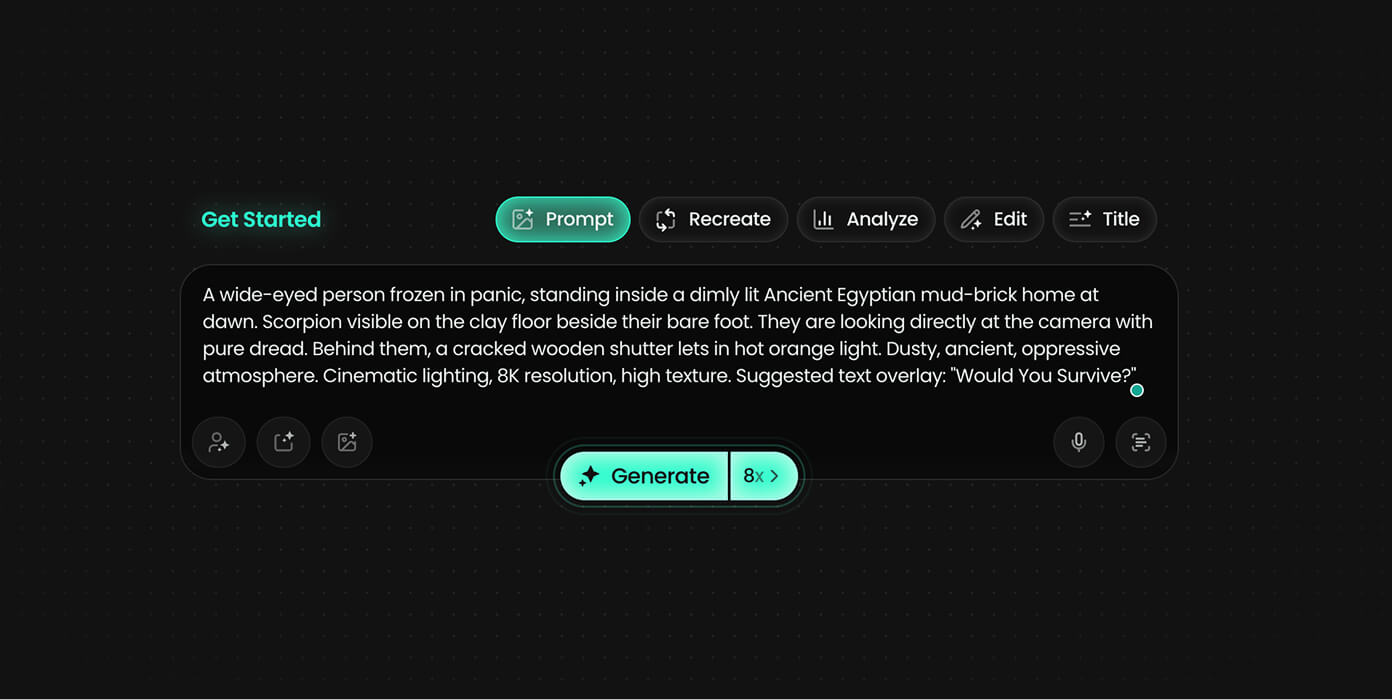
Step 2: Generate the thumbnail
Go to Pikzels, select Prompt, paste in your prompt, and click Generate. Most thumbnails appear in under 30 seconds.
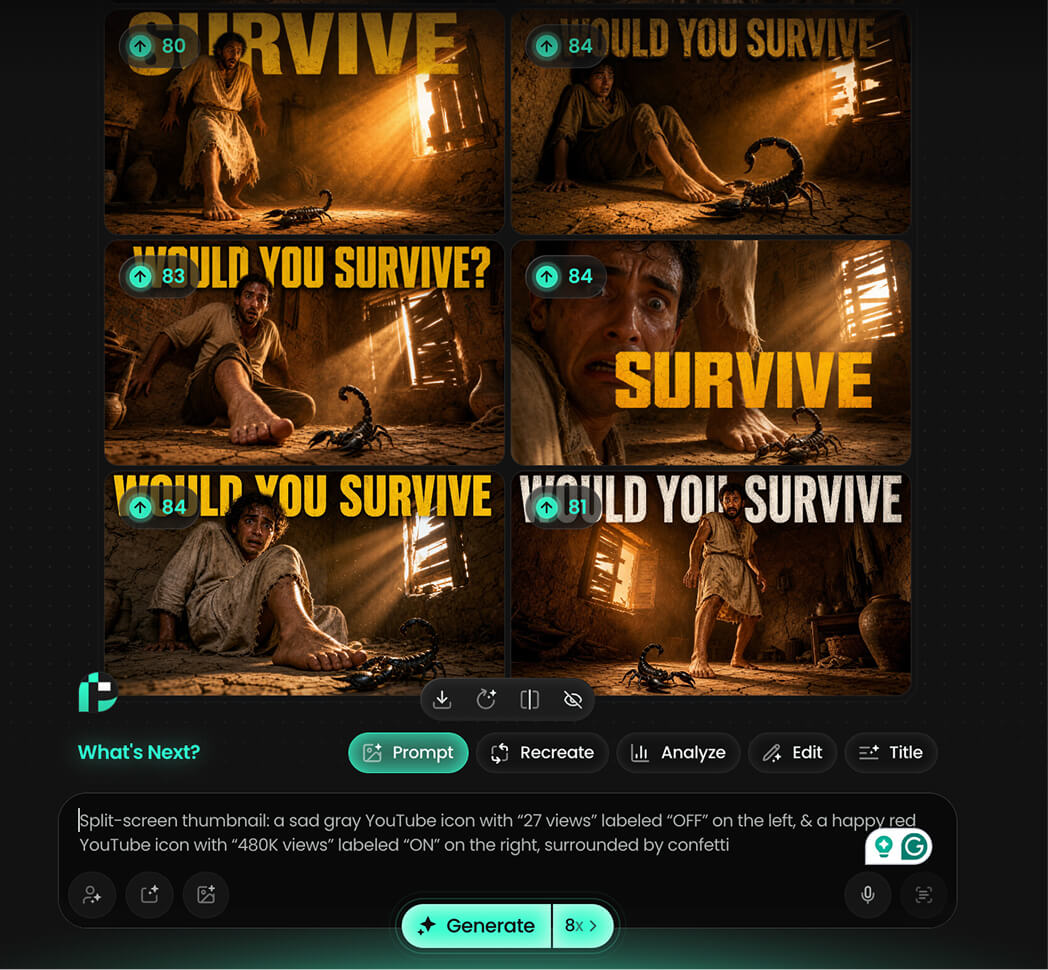
The first result will be good, sometimes very good. But don't publish it yet.
Step 3: Don’t accept the first result
This is the most important rule from experienced Pikzels users: the AI is a collaborator, not a vending machine. Your job is to guide it toward what you want.
Look at what came back. Notice what's close and what's off. Then use the Edit feature to fix it.
Write short instructions, like giving notes to a designer:
- "Make the scorpion larger and more visible near the foot."
- "Make the text white."
- "Add a question mark after the text."
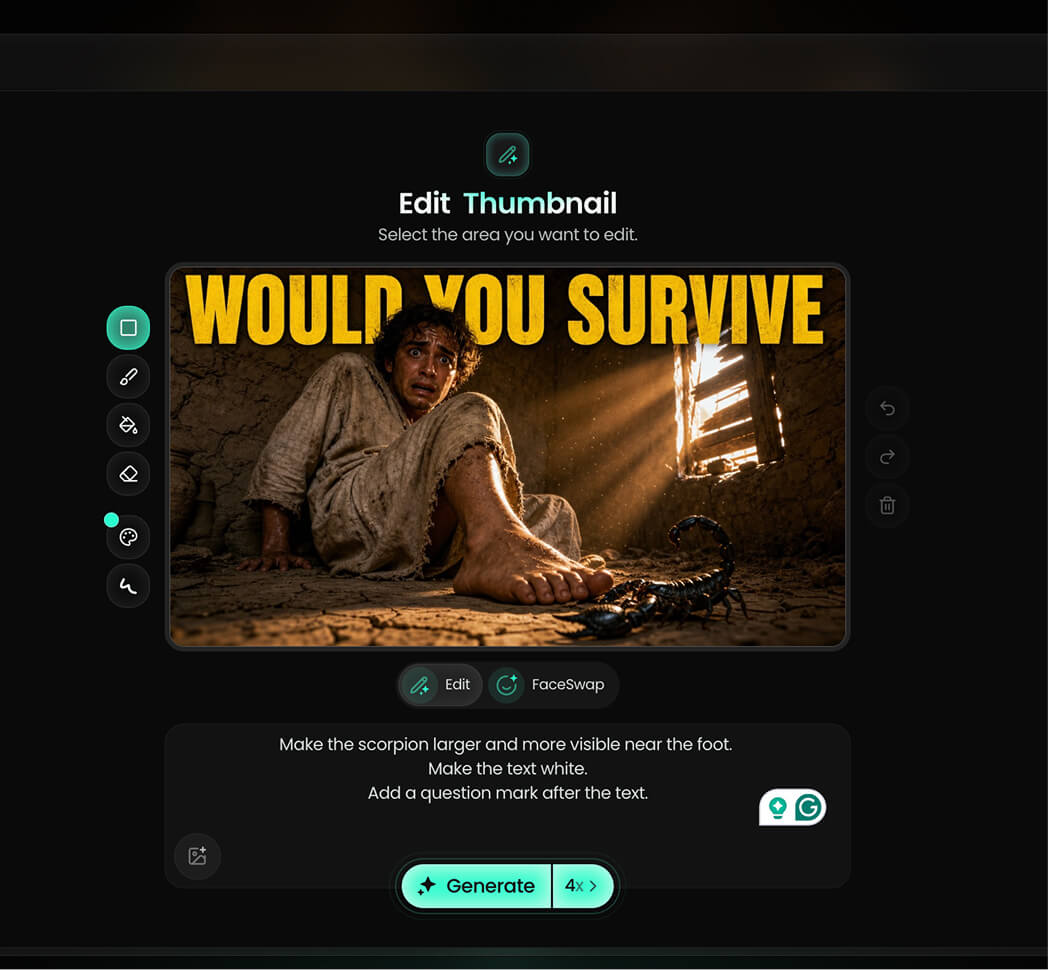
One or two edits usually get you to a thumbnail you'd use.
Step 4: Check the score before publishing
In the top left corner of every generated thumbnail, Pikzels shows a score. Aim for above 80; that's the range where thumbnails are predicted to perform well.
Click the score to see the breakdown across five pillars:
- Virality
- Clarity
- Idea
- Curiosity
- and Emotion.
Each one gets a rating, plus an explanation of what's dragging it down.
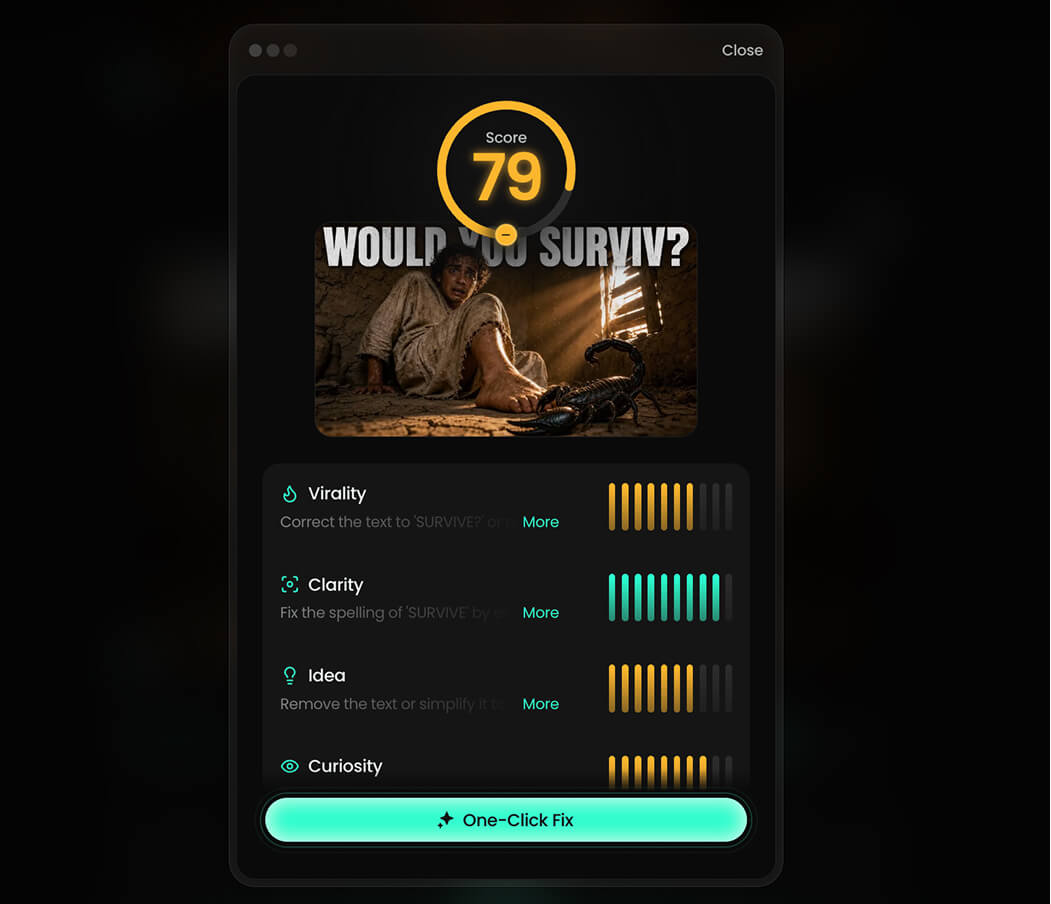
If your score is below 80, hit One-Click Fix. Pikzels will automatically transform the thumbnail, keeping the core concept and improving everything that scored low. The result is usually a significant step up.

Access Pikzels for $1 (+ 30% off starting month two)
All members of the AIR community get their first month of Pikzels for $1, then 30% off any plan for as long as they keep using it.
Get Pikzels for $1 →Step 5: Generating thumbnails with the Re-create feature
The Prompt feature is great for building something from scratch. The Recreate feature is for when you already know a format works.
Here's the workflow:
- Find a video in your niche with millions of views. Look at the thumbnail: the composition, the framing, the visual dynamic. You're not copying the content. You're borrowing the format.
- Paste the YouTube URL into Pikzels under Recreate. Set the inspiration level to High. Then in the editing field, describe what you want changed to make it yours.
The output keeps the proven composition, but becomes something original.
Step 6: Add your face with Persona
If you're a face-led channel, set up your Persona before you start generating thumbnails. You only do this once.
- Go to Account → Personas → Create.
- Upload 3 photos of yourself.
Once it's trained, select your Persona in any generation: Prompt or Recreate. Pikzels places your face into the generated scene.
Step 7: Test your existing thumbnails
One of the most underused features: upload thumbnails from videos already on your channel and run them through the Score analysis.
- Go to Analyze
- Paste your video URL
- And get a full breakdown.
If an old video is underperforming, you now know why, and you can generate an improved version and swap it out.
This is the fastest way to recover views from videos that already exist.
Get Pikzels for $1 — AIR Community Exclusive
If you're a YouTuber and lose days to thumbnails, Pikzels solves it.
The AIR community gets:
- First month for $1. Test every feature. Train your Persona. Run the Score on your existing thumbnails. Generate as many concepts as your plan allows.
- 30% off every month after that. For as long as you keep your subscription.
To claim it, click here and sign up through this link.


