
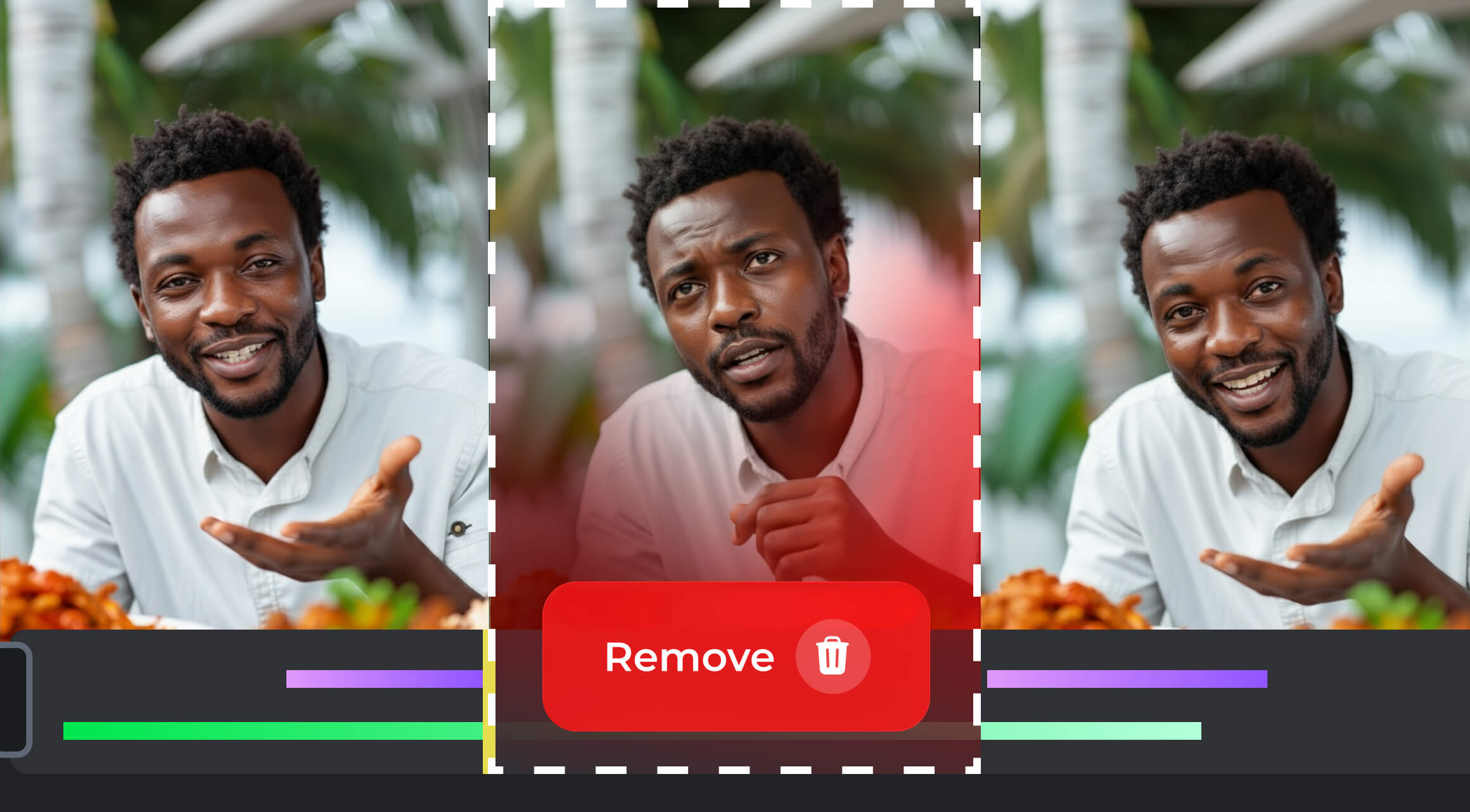

A video by itself can be great, but a lot of the success also depends on the editing. Any creator who has spent hours over footage knows how repetitive, tedious and time-consuming this process can be, especially when it comes to getting through all the bad takes.
Coughs, awkward pauses, all that small stuff can take up hours to edit out. And for channels posting daily, this quickly becomes a bottleneck. So, how do you cut the time in half? Let’s find out.
Why Bad Takes Cost You More Than Time
Bad takes hurt engagement because they ruin the smooth flow of the video. The ‘ums’, awkward pauses or phrasings, can lead to lower watch time and retention, even if the content by itself is good.
Consider this: If a five-minute video has 20 seconds of unnecessary flubs scattered throughout, that’s 6-7% of the video slowing the viewer down. On a 10,000-view video, that’s over 1,000 minutes of audience attention lost, which in YouTube’s metrics can influence recommended reach and monetization potential.
Manually removing these mistakes is painstaking. But AI tools allow creators to automate the process and free up time for creative work.
AI Tools That Remove Bad Takes Automatically
There are, in fact, several AI-driven solutions that can make editing easier for YouTubers. And out of those, a couple that detect and delete bad takes automatically. But how good are they, really? Do they work? Let’s find out!
1. Descript
First on the list of tools is Descript. It automatically transcribes audio and identifies filter words, stutters, or repeated parts. Users can highlight and delete text-based “bad takes”, and the video will be edited accordingly.
This tool can save hours of cutting out small blunders. Especially useful for long-form commentary videos, tutorials, or podcast-style content like video essays. Everything where you speak a lot.
Of course, this tool isn’t without drawbacks, no AI tool is perfect, after all. Some errors in transcription, if the tool makes it, may require manual adjustment. It works the best with high audio quality.
Descript pricing starts from $24 and ends in $65 per month. What’s the difference? What are the features? Let’s see. There’s a free version, but it’s limited and the end product will have a watermark. Descript has annual (per month)/monthly sub with three different tiers.
Descript Features
Hobbyist tier is $16/$24 respectively. It gets you:
- 10 transcription hours per month
- 1080p watermark-free exports
- 20 uses per month of Basic AI Actions, which includes Filler word removal, Studio sound, Create clips, and more.
- You also get 30 minutes per month of AI speech with stock AI voices and custom voice clones and 5 minutes per month of AI avatars.
Next up is Creator tier that starts with $24 per month if you do the annual subscription, and $35 if you do the monthly sub. Here, you get:
- 35 transcription hours
- 4k watermark-free exports
- Unlimited Basic and Advanced AI
- 2 hours per month of AI speech.
There’s also unlimited access to royalty-free stock library and 10 mins/month of avatars.
The last tier, Business, starts with $50 and ends with $65. What features does this baby have? 40 hours of transcripts for one. Team-wide access to Bran Studio, prio support, unlimited access to full pro AI, 5 hours/month of AI speech and 30 mins of avatars.
2. Adobe Premiere Pro + Adobe Sensei
Next up is a familiar tool Adobe Premiere Pro + Adobe Sensei. Sensei’s AI can detect scene changes and identify awkward pauses, shaky camera angles, or subpar takes, and offer suggestions for cut points. Sounds useful, right?
Among its benefits is that it’s integrated into a professional-grade NLE and allows you to batch process clips and automate rough cuts.
What about drawbacks? Of course, there are those as well. It requires some adjusting and general familiarity with Premiere. Moreover, it may require fine-tuning for stylistic preferences.
Adobe AI’s pricing starts at $22,99/mo (Premiere Pro) and has another $69,99/mo plan (Creative Cloud Pro). They include a free 7 day trial that you can cancel at any given time.
Adobe Features
- Both options have 100GB of cloud storage for all your video making needs.
- Premiere Pro has 25 generative credits per month while Creative Cloud Pro has 4,000 monthly.
- You also get an Adobe Express Premium plan, 20,000+ fonts, 1 million+ free photos, drawings, video clips, audio clips, and templates, and tutorials on how to use all the cool features.
- Creative Cloud Pro also offers access to 20+ mobile apps such as Photoshop, Illustrator, Adobe Reader and so on.
3. Runway
Another well-known AI tool that can cut out unnecessary or bad takes is Runway. Its functionality is rather simple: its AI can remove unwanted segments, detect off-script lines, and even auto-sync cuts to transcribed dialogue.
Among the benefits - its intuitive interface that allows creators to use it with little to no experience. What is more, it allows for collaborations.
What about drawbacks? Well, the processing time can be an issue. It's especially true for longer videos. And for the price they’re asking, it could be a significant drawback for the creators who rely on longer videos.
Runway’s pricings start at $12 per month and go up to $76/mo. The free version is there, but it’s very limited. Generative videos and images will have a watermark, there’s access to 3 video editor projects only (with limited functionality), and there’s only 5GB asset storage, which isn’t a lot. But for a free version, it’s not bad.
Runway Features
Standard, which is $12/mo has more features available.
- Generative Videos will no longer be watermarked.
- You will have access to 1080p resolution, unlimited video editing projects, and 100GB asset storage.
Next up is the Pro version with a $28/mo price tag. It has:
- All the standard features available, but additionally…here’s 500GB asset storage, and you can Create Custom Voices for Lip Sync and Text to Speech.
The most expensive option is the Unlimited plan, which is priced $76/mo. It has all of the perks of the Pro version with an added Explore Mode (which means unlimited generations of all the best AI modes).
4. FireCut
Next up on the line is FireCut. This tool is focused specifically on long-form content, and detects failed takes (which it subsequently removes and merges the clips in-between seamlessly).
This tool is perfect for daily vloggers or channels making large amounts of content. This in itself removes the routine of manual trimming of the videos.
This tool, however, might require post-processing to polish transitions (after all, we all know that no AI tool is perfect in what they do, mistakes tend to happen). And AI might misinterpret creative pauses as ‘bad takes’. So re-watching here is a non-negotiable.
FireCut’s prices are $34/mo and $24/mo if billed annually. There are two options to choose from: FireCut for DaVinci Resolve and FireCut for Premiere Pro.
FireCut Features
Both versions have the same features available.
- Full integration
- Silence cutting
- Captions in 50+ languages with automatic emojis
- Auto editing for podcasts
- Clip highlights
- Premium B-rolls, zoom cuts.
5. AutoCut
And the last tool on our radar is Autocut. It works almost identical to the previous tool in its core. It also caters more towards long-form content, detecting and deleting bad takes.
This tool is great for daily vloggers or channels posting large amounts of content every single day. Time spent on daily video trims? Saved.
AutoCut has 2 plans, Basic and AI Plan, which cost $9.9/mo and $19.8/mo respectively.
Autocat Features
- Basic plan’s features are automatic cuts of silences and J-cuts with L-cuts available as well.
- AI Plan has a bit more juice to it: basic plan + auto captions, editing of podcasts, auto zoom, B-rolls, profanity filtering, and removal of bad takes.
In our experience, channels using AI in terms of their video editing see both creative and financial ROI. Faster editing means more consistent uploads and less routine, which improves watch time, algorithm favor, and, ultimately, revenue. Plus, it helps the creator to keep away from burning out. Cutting out one routine from their schedules helps immensely.
The takeaway is simple: edit like a pro by working smarter, not longer, and let AI handle the grunt work so your creativity can shine.
AI Tools That Kill Bad Takes (2025): Fast Comparison
So, which one is fastest for long talking-heads? Does it actually delete filler words and awkward pauses? Will it mess up “intentional silence”? Can I keep my NLE workflow? Cloud vs. desktop? Here’s your cheat sheet.
|
Tool |
Platform & workflow |
How it removes “bad takes” |
Standout strengths |
Common gotchas |
|
Descript |
Desktop app with cloud transcription (Mac/Win) |
Text-based editing: bulk-delete filler words and pauses from the transcript; edits ripple to video. |
Stupid-fast first pass; captions, overdub, team comments; great for “edit like a doc” |
Transcript accuracy depends on audio; can over-trim meaningful pauses, QC your cut; occasional sync/UX complaints from users |
|
Premiere Pro (Text-Based Editing + Sensei) |
Built into Premiere; stays offline once models are installed |
Auto-transcribe; bulk delete filler words & pauses; Scene Edit Detection for found footage |
One timeline, full control; combine with pro tools (color, audio); no round-trip |
Learning curve; transcript hiccups on some projects → verify before batch delete |
|
FireCut (Premiere plugin) |
Premiere plugin (2022+) |
Remove Silences with adjustable thresholds; filler-word cleanup; multi-track guidance so only true dead air is cut |
Fast “first clean” right on the sequence; extras: captions, chapters, zooms; Advanced mode for tighter control |
Can nip creative pauses, tune settings and do a polish pass; language support varies by feature |
|
AutoCut (Premiere/Resolve plugin) |
Plugin for Premiere Pro (and DaVinci) |
Auto-trim silences/repeats; add captions; auto-zoom suggestions |
Quick setup; good for batchy talk content |
As with any auto-cutter, review for mis-cuts; paid plugin (trial exists) |
|
Gling |
Cloud app; export MP4 or XML to Premiere/FCP/Resolve |
Auto-remove bad takes, silences, filler words; generates captions/chapters; export to your NLE |
Easiest on-ramp; fastest rough pass without opening a full NLE |
Upload time for long files; free tier watermarks, plan for paid if publishing at scale |
|
Runway |
Browser; Video Editor features exist but not the focus now |
Had “Remove Silence”/Clean Audio in editor; some tools marked deprecated/limited in current product focus |
Handy in a pinch if you’re using other Runway features |
Not ideal for long projects; Runway recommends a local editor for big edits |
Buyer’s Guide: Pick the Right AI Bad-Take Remover
Here is your best path to pick the right AI bad take removal / automatic video editing setup for your channel.
Start here: 60-second decision tree
- I live in Premiere and want speed inside my timeline → Premiere Text-Based Editing + FireCut (add AutoCut if you want simpler one-click silence trims).
- I want a rough cut without opening an NLE → Descript or Gling (export XML/MP4 to Premiere/FCP/Resolve for polish).
- Podcasts / interviews / tutorials (long talk) → Descript (text edits) or Gling (fast cloud pre-cut), then finish in your NLE.
- Daily vlogs / volume work → FireCut (tuned thresholds) for batch cleaning right on the sequence.
- Weak internet / privacy concerns → Prefer Premiere + plugins (local).
- Collab + comments on transcripts → Descript.
What to evaluate (forum-proof checklist)
Use this checklist to judge AI bad-take removers: check editor compatibility, ease, speed, cut quality, control, voice accuracy, guest handling, and clean export on a 3–5-minute sample.
- Does it work with your editor?
Open a sample clip and see if it runs inside your editor (Premiere/Final Cut/Resolve) or exports an XML/MP4 you can drop in. If not, skip it. - Is it easy to use?
Can you find one button like “remove silences / filler words” and run it without a tutorial? If you’re lost in 2 minutes, skip. - Is the auto-cut fast?
Take a 3–5 min talking clip. Hit auto-cut. If it finishes in under a minute on your machine, good. If it takes ages, skip. - Does it cut the right stuff?
Play the result at 1.5–2×. Were coughs/ums/long dead air removed, but the message still flows? If jokes/pauses feel ruined, either turn it down or skip. - Can you control how aggressive it is?
Look for simple sliders like “min silence length” or a list of filler words you can include/exclude. No controls = risky. - Does it understand your voice/accent?
Skim the transcript for 30 seconds. If names/terms are wrong all over, try another tool. - Does it handle guests/co-hosts?
Check if it shows speaker labels or at least doesn’t chop overlapping speech. If it does, great; if not, beware for interviews. - Can you get back to your timeline cleanly?
After the auto-cut, can you export back to your editor without glitches (XML/MP4)? If the import is messy, skip.
Keep the tool that passes all eight: works in your editor, is easy and fast, cuts the right stuff without killing pacing, lets you tune aggressiveness, understands your voice, handles guests, and drops back into your timeline cleanly.
Starter Settings (to Avoid Wrecking Timing)
Start with these safe first-pass settings so the AI trims noise without flattening your pacing.
- Silence trim threshold: start conservative (e.g., trim gaps >300–400 ms); never “aggressive” on first pass.
- Filler words: bulk-delete in text tools, but exclude those used for emphasis (configure stop-list).
- Multi-speaker shows: enable speaker detection; don’t trim overlapping speech.
- QC pass: watch at 1.5–2×, restore intentional pauses, check cuts under music, and fix jumpy spots with B-roll or short crossfades.
After a 2× QC, if you’re restoring more than a couple of beats, back off the silence threshold or your filler list and re-run, otherwise save this as your default preset.
Common Pitfalls (and How to Dodge Them)
If the AI pass broke your cut, use these quick fixes to restore flow and intent in minutes.
- “Killed the joke” effect: auto-trim removed comedic beats → raise silence threshold; whitelist key phrases.
- Choppy flow: run a micro-crossfade on cuts or add B-roll to mask jump cuts.
- Mistranscribed names/terms: add them to the tool’s custom dictionary.
- Music gaps misread as silence: lock music track before auto-trim or exclude it from detection.
If two tweaks don’t stabilize the edit, dial back automation (raise thresholds, shrink filler list) and re-run, or switch to a tool with better speech/music detection.
Try-Before-Buy Plan (One Week)
- Time one normal edit and note AVD/retention on similar videos.
- Run the same format through your top 2 tools.
- Measure editing time saved, number of manual fixes, viewer retention after publishing.
- Keep the stack that saves ≥30–50% edit time without lowering AVD.
ROI quick math
- Savings = (hours saved per video) × (videos/month) × (your hourly value).
- Example: 1.5 h saved × 12 videos × $30/h = $540/mo. If the tool costs $29–$49, the math works.
Pick one fast auto-cutter for the rough pass and one pro timeline for polish. If you’re in Premiere, the Text-Based Editing + FireCut combo is the fastest path. If you want a clean pre-cut, Descript or Gling gets you there, then finish in your NLE.
Do the 2× speed QC and restore intentional silence, automatic video editing should accelerate your craft, not flatten it.
![YouTube Updates: AI Shorts, Streams, and Monetization [September 2025]](https://air.io/storage/Ql3V7rQ8LsIG1wJ41nHolTgfGFOGbuicI38ynQKC.jpg "YouTube Updates: AI Shorts, Streams, and Monetization [September 2025]")